What is a real-time AI interview assistant?
An AI interview assistant is a program that helps you answer interview questions. Some help you practice before the day. A real-time one, like ClapAssist, works during the real call: it hears the question, reads your resume and the job description, and shows you a short answer on your screen while you talk.
On this page
- Interview copilot, helper, buddy: one thing, many names
- The two kinds, and what each one is for
- How ClapAssist works, step by step, with a video
- Is an AI interview assistant detectable?
- Zoom, Google Meet, Teams, HireVue and HackerRank
- The best AI interview assistant for your situation
- What you get for free
- Setup and system requirements on Mac and Windows
- What to check before you trust any AI interview assistant
- ClapAssist and other AI interview assistants
- Honest limits
AI interview helper, interview copilot, interview buddy: are they the same thing?
Mostly, yes. People search for an AI interview helper, an interview copilot, an AI interview copilot, an interview AI assistant, a live interview AI or an interview buddy, and they usually mean the same kind of tool: something that sits next to the call and helps you answer.
The name tells you less than one question: does it work before the interview, or during it? A tool that only quizzes you a week before is a practice tool, whatever it is called. A tool that hears the real question and shows an answer while the interviewer is still on the line is a live interview assistant. "Copilot" is the word some companies use for that live part, because it sits beside you and does not take over. ClapAssist is the live kind, and the rest of this page explains what that means in practice.
Practice tools and live-call assistants are different products
Both get called an AI interview assistant. They solve different problems.
1. Practice and mock-interview tools
These ask you questions before the interview and score your answers. You use them a week before, alone, when nobody is watching. They are good for finding weak spots and for rehearsing a story until it is smooth. Our own AI mock interview is this kind, and it is free.
2. Live-call assistants
These run while the real interview is happening. They listen to the call, understand the question, and put an answer on your screen in the time it takes the interviewer to finish speaking. ClapAssist is this kind. The job is not to teach you. The job is to stop the blank moment when you know the answer but cannot find the first sentence.
| Feature | Practice tool | Live-call assistant |
|---|---|---|
| When you use it | Days before | During the interview |
| What it gives you | Feedback and a score | An answer, right now |
| Reads your resume | Sometimes | Yes, that is the whole point |
| Needs to be hidden | No | Yes, from screen share and recordings |
| Replaces preparation | No | No |
Most people need both. Prepare with the free tools and the answer guides. Keep a live assistant open for the moment your mind goes empty.
How ClapAssist works
- Install it. ClapAssist is a desktop app for Mac and Windows. It is not a browser extension and not a plugin for Zoom or Meet. You get 10 free minutes once, with no card.
- Add your resume and the job description. Paste them in Settings. They are saved to your account, so the app fills them in on any computer. This is what makes the answers yours instead of generic.
- Open the call as normal. Zoom, Google Meet, Microsoft Teams, or any other video call. ClapAssist does not connect to the meeting platform at all, so there is nothing to set up on the call side.
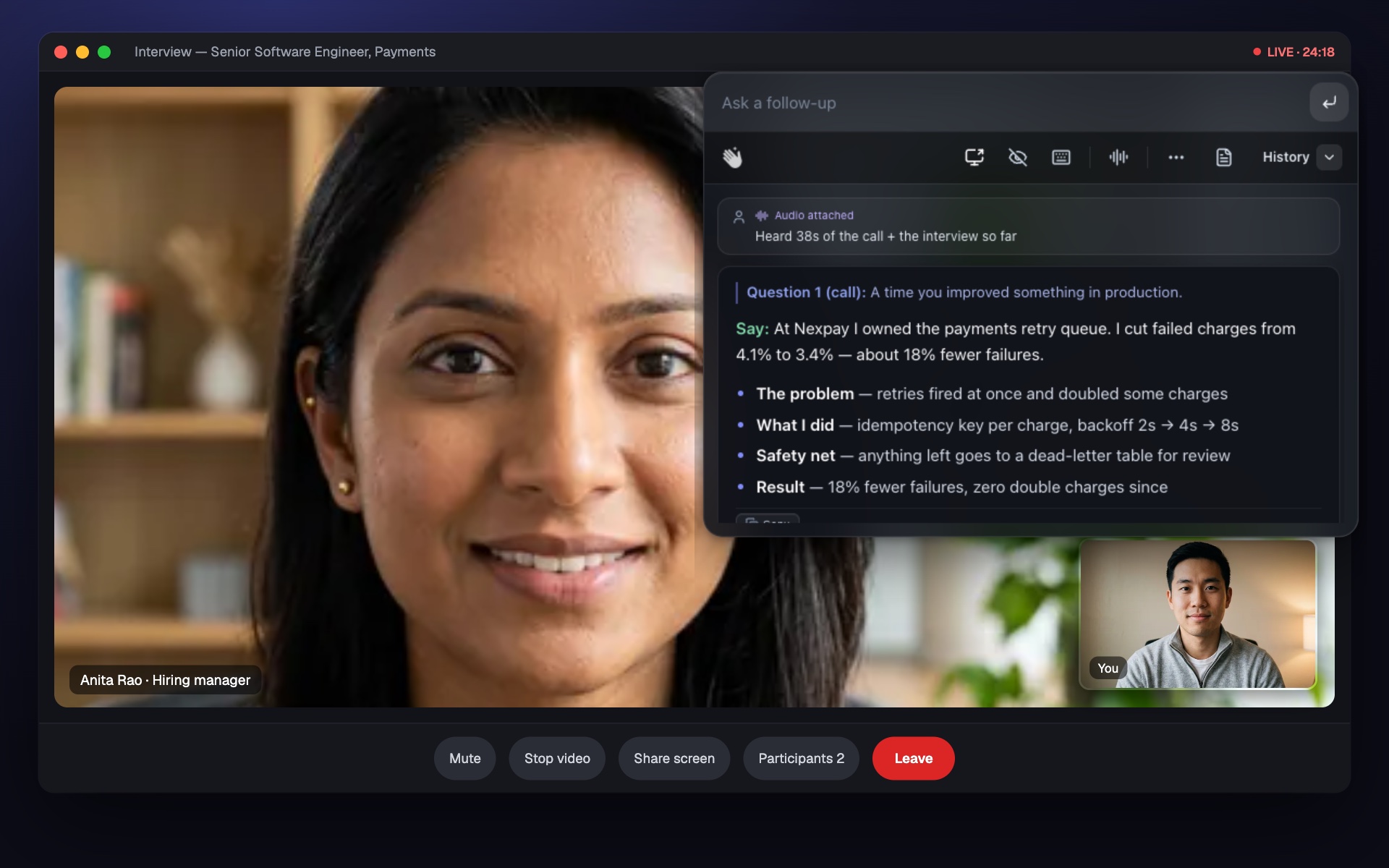
- Press listen. A small bar sits above the call. Once it is listening, it hears the interviewer through your computer's audio.
- Read the answer. When a question ends, the bar shows one short sentence to say first, then bold points to fill out the answer. You read the sentence, then talk through the points in your own words. Press Cmd+Enter on a Mac, or Ctrl+Enter on Windows, for an answer right away.
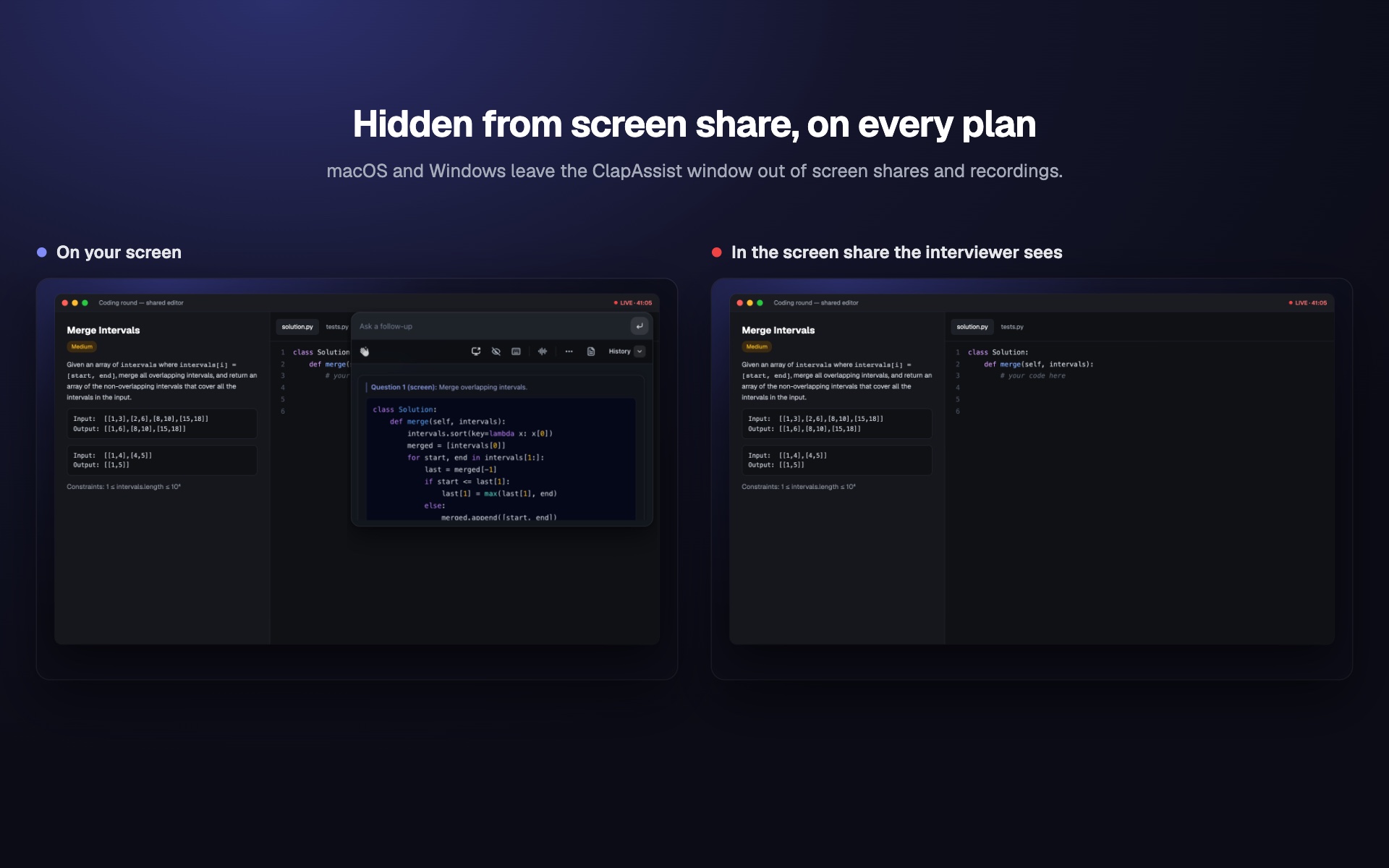
- Stay hidden. The operating system keeps the window out of screen shares and recordings. If you share your screen, the other side sees your slides or your code, not ClapAssist. It never joins the call as a bot, so the participant list does not change.
The two-minute tour below shows the whole app: the bar, listening to a call, asking about your screen, what the interviewer sees and the settings. It has music and no voice.
Here is the shape of what appears. This is a template, not a real person's answer.
Say: "I have spent the last [number] years doing [main skill] at [company], and the part of that work I like most is exactly what this role is about."
Then: the one project from your resume that matches the job description, the result it had, and why this team is the next step.
Minutes are counted only while the app is actively listening. Setting up, reading, and waiting in the lobby cost nothing. You see minutes in the app, never tokens or model costs. After the call, a written recap and the transcript are saved to your account; you can switch transcripts off in Settings and delete them any time. The live audio and your screen are never stored.
Is an AI interview assistant detectable?
Many tools sell a "stealth mode" and call themselves invisible or undetectable. Those words promise more than any app can keep. Here is what ClapAssist hides, and what nothing can hide.
Hidden from screen share and recordings
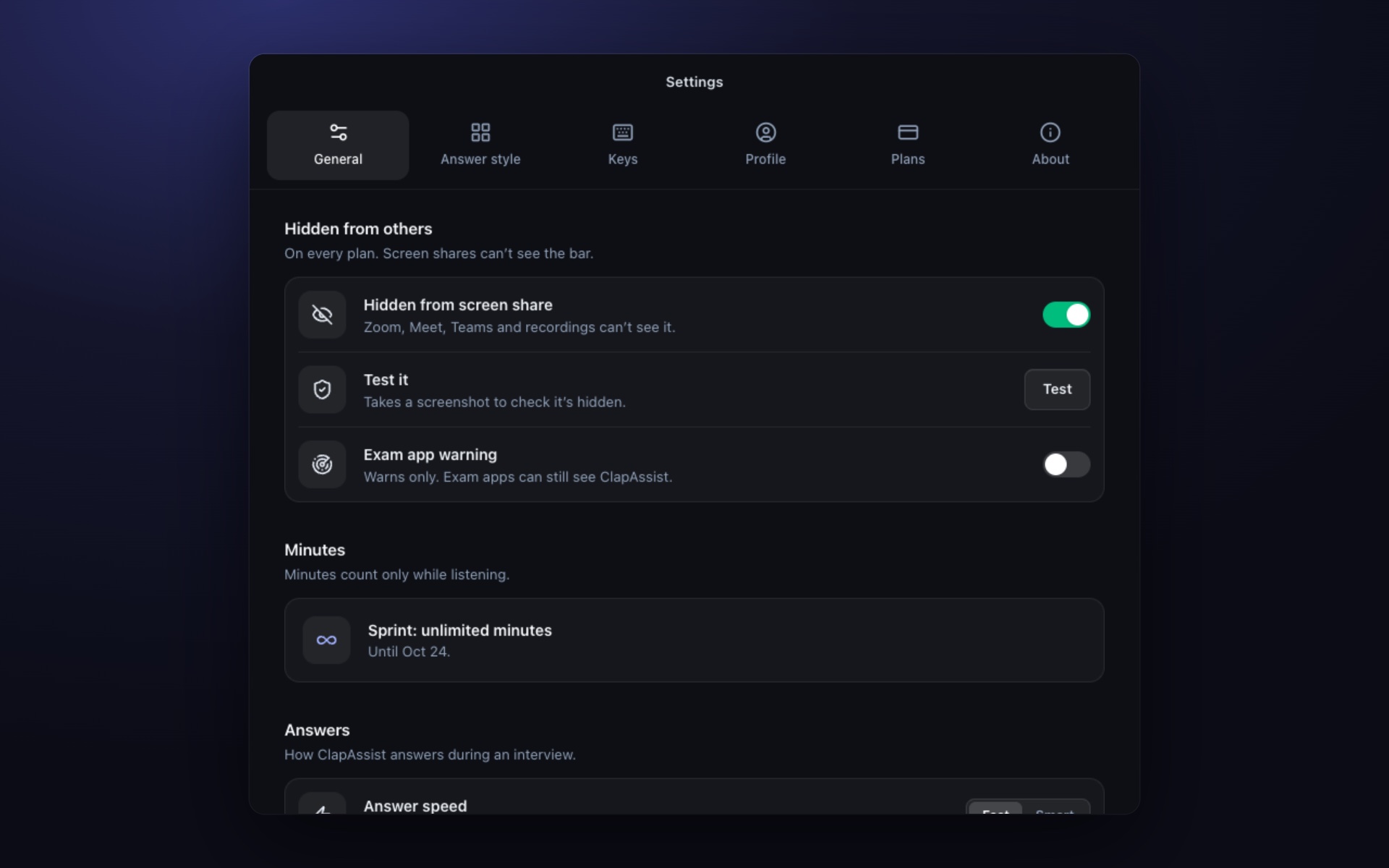
ClapAssist asks macOS and Windows to leave its window out of every screen capture. When you share your screen on Zoom, Meet or Teams, the interviewer sees your slides or your code, and the recording does not have the window either. It works this way on every plan, the free minutes included, and you can check it yourself with the free screen share check or a practice call with a friend.
Does it show in the meeting participant list?
No. Some assistants add a bot to the meeting to hear the audio, and that bot appears in the participant list with a name. ClapAssist hears the call through your own computer, so nobody new joins and the list does not change.
Proctored interviews and locked-down coding tests
Here the honest answer is no, it is not hidden. Exam apps that watch your whole computer can see that ClapAssist is running. In Settings there is an Exam app warning that tells you when a known one is open, such as Respondus LockDown Browser or ProctorU; it warns, it does not hide. Never use it on a proctored exam or a locked-down coding test.
What no app can hide
Your eyes, long pauses before every answer, and a phone camera pointed at your screen. An answer read word for word also sounds read. Look at the bar for the first line, then look at the camera and talk. Some employers do not allow AI help in interviews at all, so read the rules first. Our page is ClapAssist safe to use goes through it in more detail.
Does it work on my interview platform?
ClapAssist never connects to the meeting software. It hears whatever plays through your computer's audio, so the platform the recruiter picks does not matter for video calls. Here is each one people ask about.
Zoom
Works in the Zoom app and in Zoom in the browser. The operating system keeps ClapAssist out of Zoom's screen share and cloud recording. More on the Zoom page.
Google Meet
Works in any browser. ClapAssist never joins the call, so the participant list does not change, and it stays out of screen shares and recordings. More on the Google Meet page.
Microsoft Teams
Works in the Teams app and in the browser. There is no add-on to install inside Teams and nothing for an IT team to approve. More on the Microsoft Teams page.
HireVue and other one-way video interviews
In a one-way interview the question plays as a video on your screen, through your computer's audio, so ClapAssist hears it the same way it hears a live call. If the round is a timed coding test or a game, it is a test, and the next point applies.
HackerRank, CoderPad and other coding test sites
Not built for these. Locked-down test sites watch window focus and keystrokes from inside their own page. ClapAssist warns you when proctoring software is running instead of hiding from it. For a coding round held over Zoom, Meet or Teams, it works as on any call.
Webex, FaceTime, Slack and phone-style calls on your computer work the same way. A call on a separate phone does not: the app can only hear your computer.
The best AI interview assistant for your situation
There is no single best AI interview assistant. The best one is the one that works in the round you actually have. Here is how ClapAssist fits each common case, and where it does not.
Behavioral and HR rounds
This is what it is built for. "Tell me about yourself", "a time you handled conflict", "why this company": the answer comes from your resume and the job description, as one line to say first and the points behind it.
Coding rounds over a video call
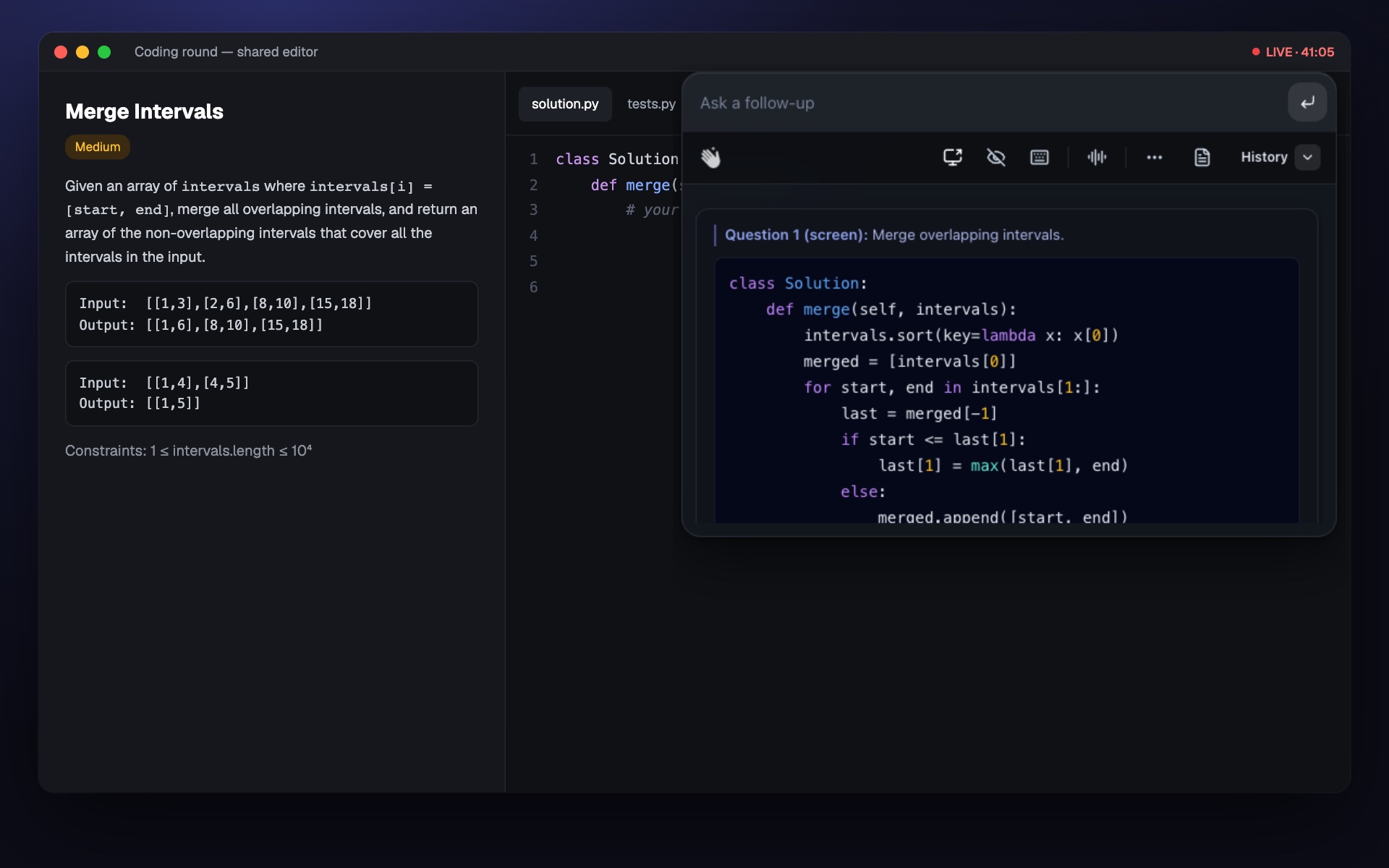
When the problem is on your screen in a shared editor, ClapAssist can read it and write the code with a short explanation. It has coding, system design and SQL modes. This works for a coding round held over Zoom, Meet or Teams, not for a locked-down test site.
Interviews in English as a second language
The app understands and transcribes many languages, and the "Answer in" setting picks the language of the answer. That helps when the question is in English but you think faster in your own language, or the other way round.
Freshers and first interviews
If you have never been asked "tell me about yourself" by a stranger, the first line on the screen is often all you need to get going. The fresher preparation guide is a good place to start before the call.
One-way video interviews
The recorded question plays through your computer, so the app hears it like a live call. Timed games and coding tests inside those platforms are tests, and the rule above applies.
Skip it if
- Your interview is in person. There is no screen to put it on.
- Your round is a locked-down coding test on HackerRank, CoderPad or a similar platform.
- You want a tool that joins the call and writes notes for you. That is a meeting-notes product, and ClapAssist is not one.
Free AI interview assistant: what you actually get for free
Every ClapAssist account gets 10 free interview minutes once, with no card. They are the full product: live answers from your resume, hidden from screen share. That is enough for one practice call with a friend, which is the best way to learn to read one line and keep talking.
Free tiers differ a lot between tools. Some give practice only, some give short live sessions without the hiding, and some give nothing until you pay. The "Live answers for free" column in the comparison below shows each one, and the free plan page says exactly what ours includes.
Setup and system requirements on Mac and Windows
How to set up an AI interview assistant on macOS
- Download the app, open the file and drag ClapAssist into Applications. It is a Universal app for Apple Silicon and Intel Macs.
- Open it and create your account or sign in.
- Allow the two permissions macOS asks for. The microphone is for your own voice. The screen and system audio permission lets the app hear the call and read a question on your screen. macOS applies a screen permission only after the app restarts, and ClapAssist brings you back to the same screen.
- Paste your resume and the job description in Settings, then run a short practice call.
On macOS 14.2 or later the app hears the interviewer's audio directly, with nothing extra to install. Older macOS still works, through the screen recording route, which lights the purple recording dot in the menu bar. The Mac page covers each step and the usual fixes.
Windows
Windows 10 and Windows 11, on regular and ARM laptops, with one installer. The installer is not code-signed yet, so Chrome and SmartScreen show a warning about the missing signature the first time. The Windows page shows what to click.
What you need
- A Mac or a Windows laptop or desktop. There is no phone or tablet version of the live assistant.
- The interview playing through that computer's speakers or headphones.
- An internet connection during the call, because the answer is written on our servers.
- Your resume and the job description, pasted once.
What to check before you trust any AI interview assistant
There are many tools with this name. Ask each one the same five questions. The answers separate the ones you can rely on from the ones that will surprise you mid-call.
Is the window really out of screen share?
Ask how, not just whether. The reliable way is at the operating-system level: the app tells Windows or macOS that its window must be excluded from capture. Anything that depends on you moving the window off-screen, or on a browser trick, can fail the moment you press "share". Test it before the real day: start a call with a friend, share your screen, and look at their view.
Does it join the call?
Some assistants add a bot to the meeting to hear the audio. That bot appears in the participant list with a name. An interviewer who sees it will ask about it. ClapAssist hears the call through your own computer, so nothing new appears on the call.
Where does your resume go?
Your resume is your data. Ask whether it is uploaded, stored, and used to train anything. ClapAssist saves your resume, job description and notes to your account so the app fills them in on any computer, and you can delete them anytime. Interview audio is used to make the answer and is never stored. The privacy policy says this in plain words.
Is it a subscription?
Job searches end. A monthly charge does not end on its own. Check whether the tool renews, and how hard it is to stop. ClapAssist starts with 10 free minutes. After the 10 free minutes: Practice for one interview (120 minutes), or a Sprint or Job Hunt for unlimited use inside a 14- or 30-day window. Every plan is paid once and never renews. The pricing page lists the plans.
Does it work on Google Meet, Zoom and Microsoft Teams?
A tool that needs a plugin for each platform breaks when the recruiter sends a link you did not expect. Because ClapAssist does not connect to the meeting software, it works the same on Google Meet, Zoom, Microsoft Teams and any other call that plays through your computer.
ClapAssist and other AI interview assistants
Three of the checklist questions, for the tools people compare most. Each name links to a full comparison with prices and the date we read their site.
| Tool | Hidden from screen share | Live answers for free | How you pay |
|---|---|---|---|
| ClapAssist | Every plan, including Free | Yes, 10 minutes once, no card | Every plan is paid once and never renews |
| LockedIn AI | Stealth Mode on paid plans except General; not on the free plan | Yes, 5-minute sessions up to 60 minutes a day, without Stealth Mode | Subscription, credits or lifetime |
| Final Round AI | "Stealth mode" on paid plans, not on the Free Plan | No: "live sessions need an active Pro subscription" | Subscription |
| InterviewFox | Shows answers on a paired phone (Dual-Device Mode) | Yes, "unlimited 10-minute sessions" | Subscription that renews or a one-time "Once" period, or credit packs |
| Cluely | Only on its top "Pro + Undetectability" plan | "Limited AI responses", not hidden from screen share | Monthly or yearly subscription |
| Interview Coder | Every tier, including the free download | No: "Subscribe to unlock AI features." | Monthly subscription or lifetime; no refunds |
| Parakeet AI | "Full privacy mode" listed on paid plans; the free sessions do not mention it | Yes, 10 sessions of up to 10 minutes | Credits or unlimited plans |
Read from each tool's own website on 17 October 2026, with the LockedIn AI and Parakeet AI plans checked again on 29 October 2026; each comparison page shows the exact date, the prices and a screenshot. Plans change, so check their page before you decide. All comparisons.
ClapAssist vs LockedIn AI
LockedIn AI is an interview copilot with free and paid plans. Its free plan gives short sessions, and Stealth Mode, its name for hiding from screen share, is only on paid plans other than General. ClapAssist hides on every plan and sells days instead of a monthly plan.
ClapAssist vs Final Round AI
Final Round AI builds everything around a Goal for each job, with practice, debriefs and a live copilot. Its free plan is for preparing: the live copilot and Stealth Mode need a paid plan. ClapAssist gives live answers, hidden, in the free minutes.
ClapAssist vs InterviewFox
InterviewFox's main idea is Dual-Device Mode: the answers appear on a phone paired with your computer. ClapAssist keeps the answer on your own screen, at your eye line, with no second device to set up.
ClapAssist vs Cluely
Cluely is meeting AI for calls of every kind, with notes and a history to search. The plan that hides it from screen share is its most expensive one. If the need is a job interview, ClapAssist hides on every plan.
ClapAssist vs Interview Coder
Interview Coder is built around coding interviews and now lists other interview types too. It is hidden on every tier, but its free download has no AI until you subscribe. ClapAssist has coding, system design and SQL modes and gives AI answers in the free minutes. If you are looking for Interview Coder alternatives for coding rounds over a video call, that is the main difference.
ClapAssist vs Parakeet AI
Parakeet AI sells time in credits, or unlimited time on a plan, and lists its privacy mode on the paid plans. ClapAssist counts minutes only while it listens and has no credits to track.
Honest limits
- Locked-down coding platforms. HackerRank, CoderPad and similar tools monitor their own page. ClapAssist is not a way around them and does not try to be.
- In-person interviews. No screen, no assistant.
- It is not a replacement for preparing. It gives you the first sentence and the shape. It cannot give you the experience behind the sentence. If the resume you paste in is thin, the answers will be thin too.
- It shows text, it does not speak for you. You still have to read one line and talk. People who practice this once with a friend do far better than people who open it for the first time in the real call.
- It needs your computer's audio. If the interview plays through a phone or a second device, the app cannot hear it.
Where ClapAssist fits
Prepare with the step-by-step preparation plan and the common questions with answer frames. That is where the real work happens. In the live call, ClapAssist shows the shape of the answer from your own resume, so a question you did prepare for does not turn into a silent ten seconds. Try the free minutes on a practice call first.